
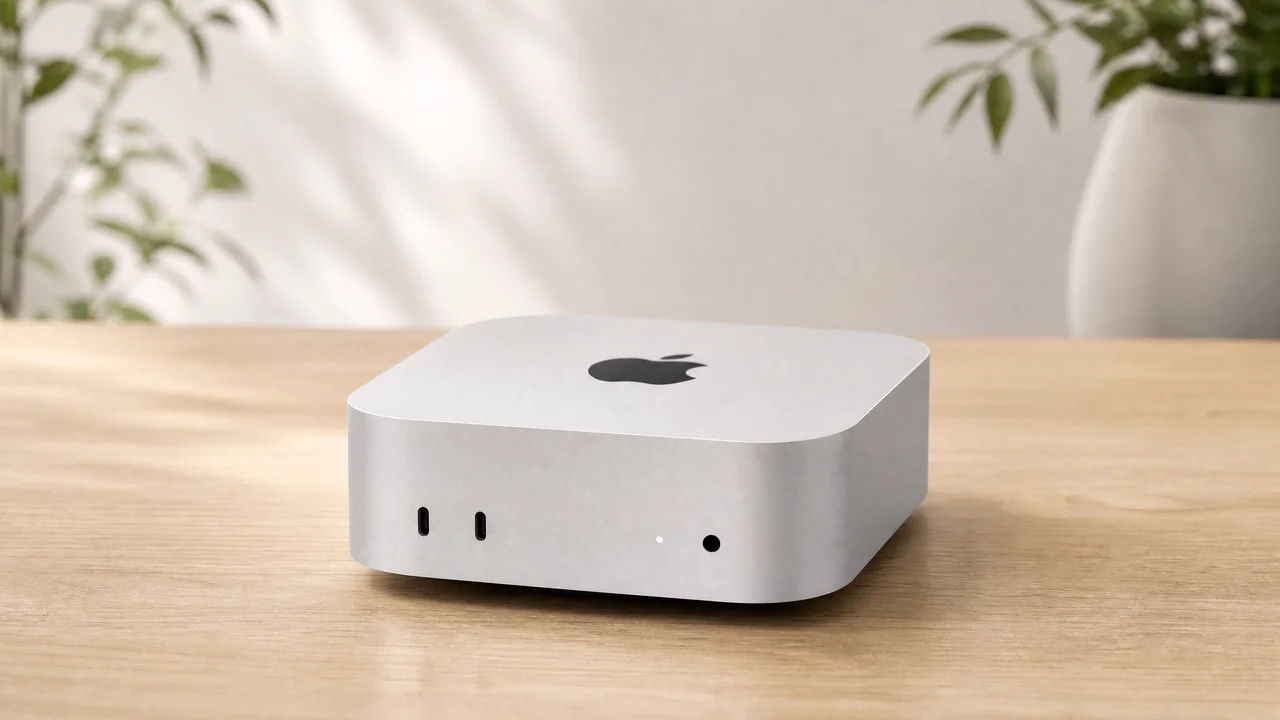
Best Mac Mini Accessories in 2026 — Ranked by Productivity Impact
Rafael Zacheu
10 min read
Disclosure: This page contains affiliate links. As an Amazon Associate I earn from qualifying purchases. If you purchase through one of these links, I earn a commission at no extra cost to you. I only recommend products I genuinely believe in.
The Mac Mini ships with a power cable and nothing else. No monitor, no keyboard, no mouse, no webcam, no external storage. At $599, it's the most affordable Mac Apple makes — but the $599 sticker is just the opening bid on a working workstation.
That's actually the opportunity. Because the Mac Mini is a "bring your own everything" computer, the peripherals you choose determine your setup quality more than the machine itself. The right monitor gives you more working context than upgrading to the M4 Pro. The right dock eliminates the daily cable-shuffle tax that drains 10–15 minutes from every workday. The right keyboard and mouse, chosen once and used for five years, quietly add hours of productive output every month.
Every accessory in this guide is organized into three tiers based on one metric: how much it actually increases daily productivity. Not design. Not brand recognition. How much your output improves when it's on your desk.
Quick Picks at a Glance
| Accessory | Top Pick | Tier | Price |
|---|---|---|---|
| External Monitor | Dell UltraSharp U2725QE | Tier 1 | ~$629 |
| Thunderbolt Dock | CalDigit TS4 | Tier 1 | ~$379 |
| Keyboard | Logitech MX Keys S for Mac | Tier 1 | ~$130 |
| Mouse | Logitech MX Master 3S | Tier 1 | ~$99 |
| Trackpad (Alt) | Apple Magic Trackpad | Tier 1 | ~$149 |
| External SSD | Crucial X9 Pro for Mac (2TB) | Tier 1 | ~$289 |
| Monitor Arm | Ergotron LX | Tier 2 | ~$149 |
| Webcam | Logitech MX Brio 4K | Tier 2 | ~$170 |
| USB Microphone | Shure MV7+ | Tier 2 | ~$249 |
| Monitor Lightbar | BenQ ScreenBar Plus | Tier 3 | ~$149 |
How the Tiers Work
Tier 1 — Build this first. These are the foundation. Nothing else delivers real value until these are in place. Missing any one of them means your setup has a hard limit on what you can accomplish.
Tier 2 — Add these next. Meaningful, measurable improvements you'll notice several times a week. Once Tier 1 is complete, these are the next best investments for your daily output.
Tier 3 — Comfort upgrades. Genuinely useful and worth having, but deferrable. Buy these when the rest of your setup is complete and you're optimizing for the final layer of comfort.
Tier 1 — Build This First
These are the core components of a Mac Mini workstation. Nothing else delivers real value until these are in place.
1. External Monitor
The Mac Mini is the only Apple computer sold without a screen, so a monitor isn't an accessory — it's a requirement. But which monitor you choose matters in ways that go beyond resolution.
Best pick: Dell UltraSharp U2725QE (~$629)
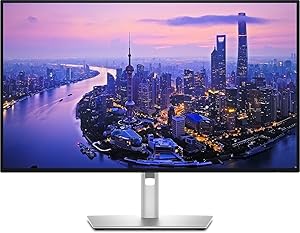
Dell
Dell UltraSharp U2725QE 27" 4K IPS Black Monitor — Thunderbolt 4, 120Hz
Dell U2725QE on AmazonThe reason the U2725QE leads this list isn't image quality — it's the Thunderbolt 4 hub built into the monitor. One cable from your Mac Mini handles video output, 140W power delivery, 2.5Gb Ethernet, and a full USB hub simultaneously. For most users, this monitor replaces the need for a separate dock entirely.
The IPS Black panel is the other reason to pay the premium over cheaper 4K displays. Standard IPS panels deliver around 1,000:1 contrast. IPS Black delivers 3,000:1. If you spend your day in code editors, writing apps, or document review, you notice the difference within an hour — dark themes look genuinely dark, not washed-out grey. The 120Hz refresh rate makes macOS animations and scrolling feel noticeably smoother than the 60Hz panels that dominated 4K monitors until recently.
One known issue: Macs and Dell monitors sometimes negotiate yCbCr color format instead of RGB by default, which produces slightly muted colors. The fix is a one-time change in macOS Display Settings — search "Dell U2725QE RGB Mac" and you'll find a two-minute solution. It's not a hardware defect; it's a handshake preference.
Pros (Dell U2725QE):
- Thunderbolt 4 hub eliminates the need for a separate dock in most setups
- IPS Black contrast makes dark interfaces look the way they're supposed to
- 120Hz refresh is a real-world upgrade from 60Hz, not a benchmark stat
Cons (Dell U2725QE):
- yCbCr color handshake requires a one-time settings fix on Mac
- 4K uses macOS scaling — sharp but not Retina-pixel-perfect like 5K
- No built-in webcam at this price point
Budget pick: Dell S2725QC (~$349)
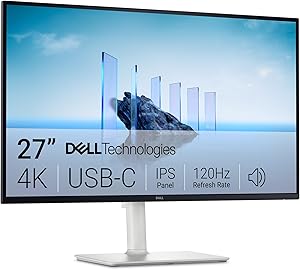
Dell
Dell S2725QC 27" 4K USB-C Monitor — 120Hz, AMD FreeSync
Dell S2725QC on AmazonThe S2725QC gives you 4K at 120Hz with 65W USB-C power delivery — enough for Mac Mini, tight for MacBook Pro. No Thunderbolt means you'll need a separate dock for full connectivity. But as a standalone 4K monitor under $400, nothing else competes at this resolution and refresh rate.
Pros (Dell S2725QC):
- 4K at 120Hz under $400 — best value in this resolution bracket
- USB-C with 65W power delivery covers Mac Mini without extra cables
- AMD FreeSync for smooth macOS scrolling
Cons (Dell S2725QC):
- No Thunderbolt — requires a separate dock for more than two peripherals
- 65W PD is insufficient for MacBook Pro under load
- Standard IPS (not IPS Black) — contrast noticeably less rich than U2725QE
Premium pick: Apple Studio Display (~$1,599)
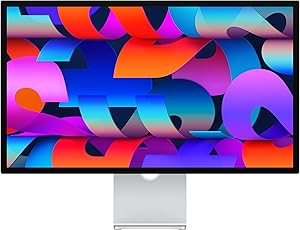
Apple
Apple Studio Display — 27" 5K Retina, Center Stage Webcam
Apple Studio Display on AmazonThe 27" 5K Retina panel at native macOS resolution is the sharpest display you can put on a desk. The Center Stage webcam tracks your face automatically so you always appear centered on video calls. Spatial Audio from the six-speaker array makes it the best-sounding monitor available. Whether the $970 premium over the U2725QE is justified depends on whether you video call clients daily and whether native 5K sharpness matters for your work.
Pros (Apple Studio Display):
- 5K native Retina — sharpest display available at any price for Mac
- Center Stage webcam is the best built-in camera on any monitor
- Spatial Audio six-speaker system — replaces external speakers
Cons (Apple Studio Display):
- $1,599 is more than twice the cost of the U2725QE
- No Thunderbolt 4 hub — requires separate dock for connectivity
- Non-upgradeable: future macOS resolution changes could reduce value
Best for: Designers, daily video callers, and anyone for whom screen quality is directly tied to professional output.
2. Thunderbolt 4 Dock
The M4 Mac Mini has 3 USB-A ports, 2 Thunderbolt 4 ports, 1 HDMI, and a headphone jack. That sounds like enough until you plug in a monitor, an external drive, a keyboard, a mouse, a webcam, and headphones. You're already out of ports on day one.
A Thunderbolt dock connects to one Mac Mini port and expands into 10–18 ports. It's the multiplier that makes everything else work cleanly.
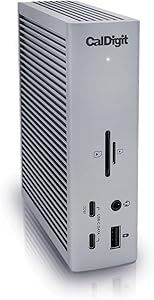
Best pick: CalDigit TS4 (~$379)
CalDigit
CalDigit TS4 Thunderbolt 4 Dock — 18 Ports, 98W Charging
CalDigit TS4 on AmazonThe TS4 has 18 ports — the highest count of any Thunderbolt 4 dock available. Three Thunderbolt 4 ports (40Gb/s each), five USB-A at 10Gb/s, three USB-C at 10Gb/s, dual SD card slots (full-size UHS-II and microSD), 2.5Gb Ethernet, audio in/out, and 98W host charging. The 98W output is the critical spec: it fully charges every Mac configuration at full speed, including MacBook Pro 16" under heavy load.
The CalDigit TS4 is the unanimous recommendation across Wirecutter, iMore, AppleInsider, MacRumors, and XDA.
Pros (CalDigit TS4):
- 18 ports — eliminates port conflicts permanently
- 98W host charging — covers every Mac configuration at full speed
- Dual SD card slots (UHS-II full-size + microSD) — no adapter needed
- 40Gb/s per Thunderbolt port — full bandwidth for external SSDs and displays
Cons (CalDigit TS4):
- $379 — highest upfront cost in this guide
- Large footprint compared to travel-friendly hubs
- Occasional wake-from-sleep reconnection delays on some Mac/macOS combos
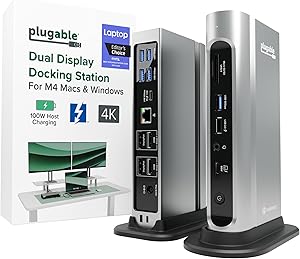
Budget pick: Plugable 16-in-1 Thunderbolt 4 Dock (~$189)
Plugable
Plugable 16-in-1 Thunderbolt 4 Dock — Dual 4K, 100W Charging
Plugable TB4 Dock on AmazonHalf the price of the TS4, with 16 ports including dual HDMI, 100W PD, 2.5Gb Ethernet, and SD/microSD slots. Supports dual 4K monitors on M4/M5 Mac. A strong option if the TS4's $379 is over budget.
Pros (Plugable 16-in-1):
- $189 — less than half the price of CalDigit TS4
- Dual 4K monitor support on M4 Mac
- 100W power delivery covers most Mac configurations
Cons (Plugable 16-in-1):
- No UHS-II SD card slot (standard speed only)
- 16 ports vs TS4's 18 — fewer USB-A at high speed
- Build quality and warranty support lag behind CalDigit
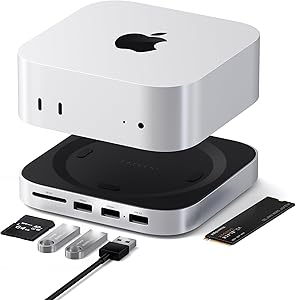
Form-factor pick: Satechi Mac mini M4 Hub & Stand (~$119)
Satechi
Satechi Mac mini M4 Hub & Stand — NVMe SSD Enclosure, USB Hub
Satechi M4 Hub on AmazonDesigned specifically to sit under the M4 Mac Mini and match its footprint. Adds front-access USB-A (10Gbps), SD card reader, and a built-in NVMe SSD slot for cheap storage expansion — the Mac Mini sits on top, keeping your desk clean. Not Thunderbolt, but for users who primarily need front-access ports and NVMe storage expansion, this is the most elegant form-factor solution.
Pros (Satechi M4 Hub):
- Purpose-built for M4 Mac Mini — matches the footprint exactly
- NVMe M.2 slot adds cheap high-speed internal-style storage
- Front-access ports eliminate reaching behind the machine
Cons (Satechi M4 Hub):
- Not Thunderbolt — USB speeds only, no 40Gb/s bandwidth
- Fewer total ports than a full dock
- No power delivery — Mac Mini needs its own power supply
Best for: Power users (CalDigit TS4) or anyone who wants a clean, purpose-built under-Mac hub (Satechi).
3. Keyboard
Input is half of computing. You interact with your keyboard for every hour you use the Mac Mini, so a keyboard that reduces error rate or increases typing speed pays dividends daily across years of use.
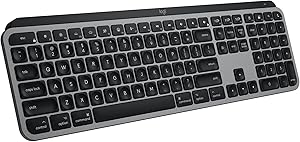
Best pick: Logitech MX Keys S for Mac (~$130)
Logitech
Logitech MX Keys S Wireless Keyboard for Mac
MX Keys S on AmazonThe MX Keys S keyboard uses spherically-dished keys — each key has a concave shape that matches the surface area of a fingertip rather than a flat top. The result is faster, more accurate typing because your fingers land on center naturally. After switching from the Apple Magic Keyboard to the MX Keys S, most users report a measurable WPM increase within the first week.
The backlit keys adjust automatically when your hands approach and shut off when you step away. Three-device Bluetooth switching lets you pair with Mac Mini, iPad, and MacBook simultaneously. Rechargeable via USB-C with battery life measured in months.
Pros (Logitech MX Keys S):
- Spherically-dished keys improve landing accuracy and typing speed
- Smart proximity backlighting — activates on approach, off when you leave
- Three-device Bluetooth switching with dedicated Mac function keys
- USB-C rechargeable — months of battery life
Cons (Logitech MX Keys S):
- Fixed typing angle — no adjustable tilt feet
- No Touch ID integration
- Requires Logi Options+ software for full per-app button customization
Default option: Apple Magic Keyboard with Touch ID (~$99)
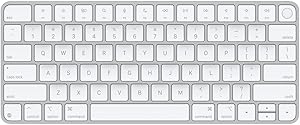
Apple
Apple Magic Keyboard with Touch ID — Bluetooth, US English
Magic Keyboard on AmazonIf you use Apple Pay or unlock your Mac frequently, Touch ID on the Magic Keyboard is the one feature the MX Keys S doesn't replicate. The pairing experience is seamless in a way third-party keyboards can't match. The downside: shallow key travel, no backlighting, and a typing experience that feels perfunctory for anyone who types for a living.
Pros (Apple Magic Keyboard):
- Touch ID for Apple Pay and Mac unlock — not available on any third-party keyboard
- Zero-configuration pairing with Mac
- Slim profile and low weight
Cons (Apple Magic Keyboard):
- Very shallow key travel — poor feedback for fast typists
- No backlighting
- Lightning charging (older models) — USB-C models available at higher price
For the committed typist: Keychron K3 Max (~$89–$109)
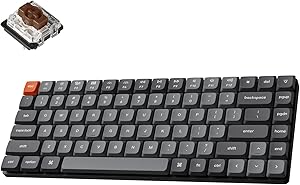
Keychron
Keychron K3 Max Low-Profile Wireless Mechanical Keyboard
Keychron K3 Max on AmazonLow-profile mechanical switches with triple connectivity — Bluetooth, USB-C wired, and 2.4GHz dongle. RGB backlit, QMK/VIA programmable, and available in Red, Brown, or Blue switches. The tactile feedback of Brown or clicky response of Blue switches is a genuine upgrade for fast typists. The noise level rules out Blue for shared offices.
Pros (Keychron K3 Max):
- Mechanical switches — tactile feedback improves accuracy for fast typists
- QMK/VIA programmable — fully customizable without software
- Three connectivity modes including 2.4GHz dongle for low latency
Cons (Keychron K3 Max):
- Blue switches are loud — not suitable for shared office environments
- Mechanical switches take adjustment time for former membrane keyboard users
- Thicker profile than MX Keys S or Magic Keyboard
Best for: MX Keys S for most users. Magic Keyboard if Touch ID is critical. K3 Max for committed typists who want mechanical feedback.
4. Mouse or Trackpad
This is the one category where the "best overall" answer splits based on how you work. Mouse users and trackpad users have genuinely different workflows on macOS.
Best mouse: Logitech MX Master 3S (~$99)
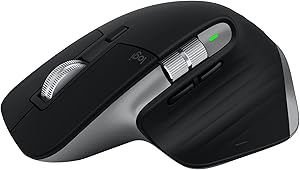
Logitech
Logitech MX Master 3S for Mac — Wireless Bluetooth Mouse, 8K DPI
MX Master 3S on AmazonThe MX Master 3S is the consensus top productivity mouse across every publication that covers this category. The MagSpeed electromagnetic scroll wheel switches between precise ratchet mode (click-by-click) and free-spin mode (1,000 lines per second). For anyone who reads long documents, browses research, or navigates codebases, the navigation speed difference is immediate.
The mouse has seven programmable buttons. With Logi Options+, each button can trigger any action per application — saving 15–30 minutes per day in eliminated repetitive actions for users who invest in configuration.
Known limitation: the left-click mechanism degrades at 12–24 months of heavy use, producing a double-click issue. Documented extensively in Amazon reviews. Logitech has historically replaced affected units under warranty.
Pros (Logitech MX Master 3S):
- MagSpeed scroll wheel — ratchet and free-spin modes in one wheel
- Seven programmable buttons with per-app customization via Logi Options+
- 70-day battery life, works on any surface including glass
- Quiet clicks — significantly less noise than standard switches
Cons (Logitech MX Master 3S):
- Left-click double-click degradation at 12–24 months of heavy use
- Large form factor — not ergonomic for small hands
- Full programmability requires Logi Options+ software
Best trackpad: Apple Magic Trackpad (~$149)
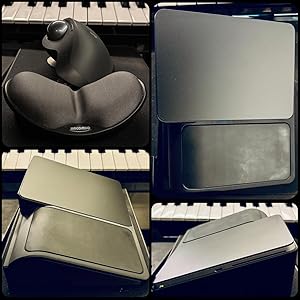
Apple
Apple Magic Trackpad — White Multi-Touch Surface
Magic Trackpad on AmazonIf you use macOS gestures as a core part of your workflow — three-finger drag, four-finger swipe between spaces, pinch to zoom, Mission Control, Exposé — the Magic Trackpad is the best tool for this. The large glass surface and Force Touch pressure sensitivity give you every macOS gesture in the fullest implementation available.
Pros (Apple Magic Trackpad):
- Full Force Touch pressure sensing — the complete macOS gesture vocabulary
- Large glass surface — the best gesture real estate of any trackpad
- Seamless Mac pairing, native macOS driver support
Cons (Apple Magic Trackpad):
- Slower than a mouse for precise clicking (photo editing, CAD work)
- $149 — more expensive than the MX Master 3S
- Charges via Lightning (older models) — check listing for USB-C variant
Best for: Mouse users: MX Master 3S for heavy navigation and programmable shortcuts. Trackpad users: Magic Trackpad for macOS gesture-first workflows.
5. External SSD
The base M4 Mac Mini ships with 256GB of storage. That's enough for macOS, a handful of apps, and very little else. An external SSD solves this permanently for less than the cost of upgrading storage at the time of purchase.
Best pick: Crucial X9 Pro for Mac (2TB, ~$289)
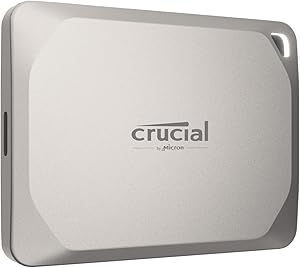
Crucial
Crucial X9 Pro 2TB Portable SSD for Mac
Crucial X9 Pro on AmazonThe X9 Pro for Mac delivers 1,050MB/s read and write speeds — the exact spec that saturates the Mac Mini's USB 3.2 Gen 2 interface. This is important: faster SSDs (like the Samsung T9 at 2,000MB/s) are throttled to the same speed because the USB interface maxes out at 10Gbps. The "for Mac" variant is pre-formatted in HFS+, includes 256-bit AES hardware encryption, IP55 water and dust resistance, and a three-year warranty.
Pros (Crucial X9 Pro for Mac):
- 1,050MB/s maximizes what Mac Mini USB-C actually supports
- Pre-formatted HFS+ — works immediately without reformatting
- 256-bit AES hardware encryption protects client data
- IP55 rated — survives spills and light outdoor use
Cons (Crucial X9 Pro for Mac):
- Not Thunderbolt — Thunderbolt 5 SSDs (>3,000MB/s) require CalDigit TS4 to saturate
- 2TB fills faster than expected if you work with video — buy 4TB if budget allows
Runner-up: Samsung T9 Portable SSD (2TB, ~$480)
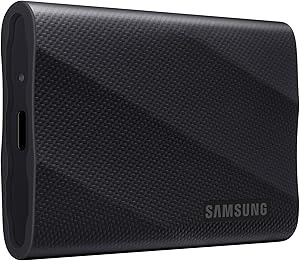
Samsung
Samsung T9 Portable SSD 2TB — USB 3.2 Gen 2x2
Samsung T9 on AmazonUSB 3.2 Gen 2x2 (20Gbps) with 2,000MB/s read speeds — speeds that exceed what Mac Mini USB ports can deliver, but future-proof for PCs or docks with Gen 2x2 ports. Slightly better ruggedness than the X9 Pro. The T9 wins if you frequently take your drive on-site or travel with it.
Pros (Samsung T9):
- 2,000MB/s — future-proof if you later use a Gen 2x2-capable host
- Excellent build quality and drop resistance
- USB-C cable included, compatible with Mac Mini directly
Cons (Samsung T9):
- Speed advantage is unused on Mac Mini — both SSDs perform identically here
- Significantly more expensive than the X9 Pro at equivalent capacity (~$480 vs ~$289)
Best for: X9 Pro for Mac-focused setups. T9 if you cross-platform between Mac and a PC with Gen 2x2.
Tier 2 — Add These Next
These accessories deliver real, measurable improvements that you'll notice several times a week. They belong in any serious Mac Mini setup, but only after Tier 1 is covered.
6. Monitor Arm
The included monitor stands position most displays at a height that requires you to look slightly downward, loading the cervical spine. Over 8-hour workdays, this produces the neck and shoulder tension that most desk workers blame on "just sitting too long."
Best pick: Ergotron LX (~$149–$189)
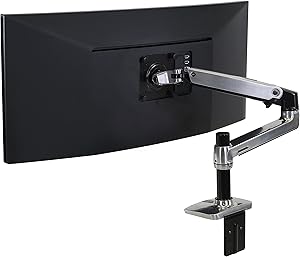
Ergotron
Ergotron LX Desk Monitor Arm — Polished Aluminum
Ergotron LX on AmazonThe Ergotron LX is the universal recommendation across Wirecutter, Tom's Guide, and PCMag. The Constant Force mechanism holds any position you set it to without drift, and moves smoothly when you adjust it. Budget arms fail here constantly — they drift down under the monitor's weight or require excessive force to reposition.
Pros (Ergotron LX):
- Constant Force mechanism — holds position without drift, no tightening required
- 13" vertical range + 25" extension covers any desk configuration
- 10-year warranty — the longest in the monitor arm category
- Full internal cable channel routes HDMI/USB-C cleanly
Cons (Ergotron LX):
- Requires VESA-compatible monitor (standard on most displays above $200)
- 25 lb weight limit — doesn't support heavy ultrawide panels
For heavy monitors: Ergotron HX (~$249)
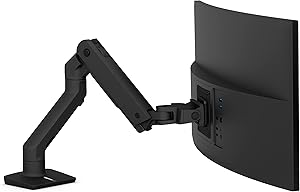
Ergotron
Ergotron HX Premium Heavy Duty Monitor Arm — Up to 42 lbs
Ergotron HX on AmazonThe HX handles monitors up to 42 lbs and panels up to 49". If you're running an ultrawide or a heavy premium display, the LX's 25 lb limit rules it out — the HX is the direct upgrade.
Pros (Ergotron HX):
- Supports up to 42 lbs — covers ultrawides and heavy panels
- Same Constant Force mechanism as the LX
- 10-year warranty
Cons (Ergotron HX):
- $249 vs $149 for the LX — $100 premium for load capacity you may not need
- Heavier arm itself — more desk clamp force required
Best for: LX for most monitors up to 25 lbs. HX for ultrawides and panels over 34".
7. Webcam
The Mac Mini has no camera. For professionals who video call clients, partners, or their team daily, camera quality signals professionalism in a way the audience is consciously aware of.
Best pick: Logitech MX Brio 4K (~$170)
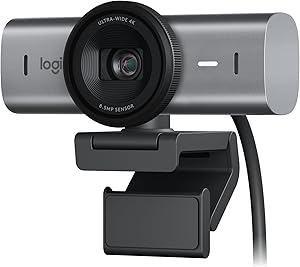
Logitech
Logitech MX Brio 4K Ultra HD Webcam
MX Brio 4K on AmazonThe MX Brio delivers 4K UHD at 30fps or 1080p at 60fps with excellent autofocus and strong performance in typical office lighting. USB-C, works immediately with macOS, Zoom, Teams, and Meet without drivers. Includes a Show Mode that tilts the camera downward to show your desk — useful for demonstrating physical products on calls.
Pros (Logitech MX Brio 4K):
- 4K UHD at 30fps — visible quality improvement over 1080p in good light
- Show Mode for desk demonstrations during calls
- Plug-and-play on macOS — no driver installation required
- Excellent continuous autofocus
Cons (Logitech MX Brio 4K):
- 4K only at 30fps — 60fps requires dropping to 1080p
- No AI auto-framing or subject tracking
- $170 faces strong competition from Insta360 Link 2 at $149
Best for movement: Insta360 Link 2 (~$149)
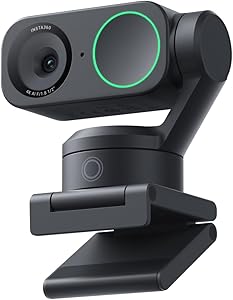
Insta360
Insta360 Link 2 — PTZ 4K Webcam with AI Tracking
Insta360 Link 2 on AmazonThe Link 2's AI auto-tracking keeps you centered without manual adjustment as you move. The 1-inch gimbal tracks your face in real time — eliminates the "walked offscreen" problem for teachers, trainers, and anyone who presents standing up.
Pros (Insta360 Link 2):
- AI face tracking via physical gimbal — stays centered as you move
- 4K with large 1/2" sensor — better low-light than most webcams
- Gesture control (wave to start/stop recording)
- $149 — less expensive than MX Brio
Cons (Insta360 Link 2):
- Gimbal adds height — larger physical footprint on monitor top
- Tracking occasionally overcorrects with fast movements
- App required for full feature access
Best for: MX Brio for static desk setups. Insta360 Link 2 for anyone who moves during calls or teaches from a standing position.
8. USB Microphone
Audio quality affects call experience more than video quality in research on remote communication. A poor microphone — one with room echo, background noise, or muffled voice — creates listener fatigue and communicates carelessness.
Best pick: Shure MV7+ (~$249)
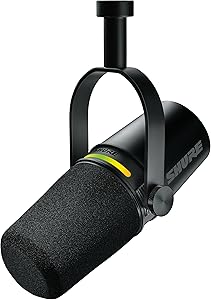
Shure
Shure MV7+ Dynamic Microphone — USB-C & XLR, Auto Level Mode
Shure MV7+ on AmazonThe MV7+ is a dynamic microphone with USB-C and XLR outputs. Dynamic microphones reject ambient sound — they capture what's directly in front of them and ignore keyboard noise, room echo, HVAC hum, and street noise. This is the critical spec for a home office microphone where you can't control the acoustic environment.
The built-in headphone jack provides zero-latency monitoring. The ShurePlus MOTIV app adjusts gain, EQ, and limiter settings without touching hardware.
Pros (Shure MV7+):
- Dynamic capsule rejects room noise — no acoustic treatment required
- USB-C + XLR dual output — upgrades to an audio interface without a new mic
- Zero-latency headphone monitoring via built-in jack
- Broadcast-grade build quality — lasts decades
Cons (Shure MV7+):
- $249 — significant investment if you only use it for calls
- Requires closer placement (~15–20cm from mouth) than condenser alternatives
- Heavier and larger than desktop condenser options
Budget pick: Rode NT-USB Mini (~$99)
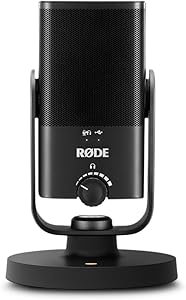
Rode
Rode NT-USB Mini — Studio Condenser USB Microphone
Rode NT-USB Mini on AmazonStudio-quality condenser USB microphone at a third of the MV7+ price. Delivers excellent audio in controlled acoustic environments. Includes a built-in pop filter and integrated stand. If your home office has soft furnishings that absorb reflections, the NT-USB Mini is the best value microphone available.
Pros (Rode NT-USB Mini):
- $99 — exceptional audio quality for the price
- Built-in pop filter and stand — no extra accessories needed
- Studio-grade condenser capsule — warm, clear voice reproduction
- Zero-latency headphone monitoring
Cons (Rode NT-USB Mini):
- Condenser captures room reflections — sounds poor in hard-surfaced rooms
- USB-A only (no USB-C native, requires adapter)
- No XLR — cannot upgrade to an audio interface without replacing the mic
Best for: Shure MV7+ for home offices with ambient noise, HVAC, or hard surfaces. Rode NT-USB Mini for quiet, well-treated rooms on a budget.
Tier 3 — Comfort Upgrades
9. Monitor Lightbar
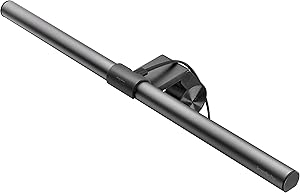
Best pick: BenQ ScreenBar Plus (~$149)
BenQ
BenQ ScreenBar Plus — LED Monitor Light with Wireless Dial Controller
BenQ ScreenBar Plus on AmazonThe ScreenBar mounts on the top edge of your monitor and lights your desk without reflecting on the screen surface. For anyone working 8+ hour days, reducing eye strain is cumulative — fewer headaches, less end-of-day fatigue, more consistent output in the final hours of the workday. The Plus version includes a wireless dial that controls brightness and color temperature (2,700K warm to 6,500K daylight) without reaching behind the monitor.
Pros (BenQ ScreenBar Plus):
- Anti-glare design — lights your desk without washing out the screen
- Wireless dial controller — no reaching behind the monitor to adjust
- 2,700K–6,500K range covers warm evening through bright daylight modes
- Mounts without tools — clips to monitor top edge
Cons (BenQ ScreenBar Plus):
- $149 — desk lamps at $30–50 partially solve the same problem
- Only illuminates the desk surface, not the surrounding wall
- Monitor must have a flat or near-flat top edge to clip onto
Best for: Anyone working 8+ hours daily in variable lighting conditions. Not worth prioritizing until Tiers 1 and 2 are complete.
Build Your Stack in Order
The single most common mistake Mac Mini buyers make is buying everything at once and using nothing consistently. The right approach is sequential: each layer creates the foundation for the next.
Start with the monitor. Everything else is secondary to having a screen that doesn't hurt to look at for eight hours. The Dell U2725QE's built-in Thunderbolt hub also potentially delays the dock purchase — if your peripheral count is modest, the monitor's ports may cover you for months.
Add the dock when you hit port limits. That usually happens within two weeks of real daily use. The CalDigit TS4 ends the port problem permanently.
Set up input devices next. The keyboard and mouse you choose become the most-used objects in your workspace. Spend time here — a week of testing is not a waste. Many users get both the MX Keys S and a mechanical keyboard to A/B test before committing.
Add storage before you need it. The 256GB Mac Mini fills faster than you expect. Buy the external SSD before the low-storage notification appears, not after.
Then build upward. Monitor arm after your ergonomics become an issue. Webcam when your call quality starts costing you professionally. Microphone when you realize people are straining to hear you. Lightbar last — when the setup is otherwise complete and you're optimizing for the final 10%.
The Mac Mini at $599 is a starting point. A fully equipped setup — U2725QE, CalDigit TS4, MX Keys S, MX Master 3S, Crucial X9 Pro, Ergotron LX, and MX Brio — runs approximately $1,850 in peripherals on top of the machine. That number sounds large until you consider that you're buying most of these items once and using them across multiple Mac generations. The Ergotron LX you buy today will work with whatever Mac Mini you own in 2030.
The return on investment is not in the hardware — it's in the hours.
Tags: